
Talkdesk Embedded for Custom Integrations
Overview
This implementation, Talkdesk Embedded for Custom Integrations, is available on the Talkdesk CDN and can be embedded in any external system using an iframe (details below).
This document presents the solution and outlines the installation/integration process that the customer must carry out to get it up and running.
Customizing code to connect with Talkdesk Embedded
To facilitate this integration, we have created a demo that can be downloaded by executing the command:
curl -o https://prd-cdn-talkdesk.talkdesk.com/talkdesk-embedded/latest/demo-generic/index.htmlTo get started and write your own custom code, an iFrame is required in the custom CRM. This iframe will load the generic implementation from our CDN:
<iframe id="td-emb-container" title="Talkdesk Embedded" src="https://prd-cdn-talkdesk.talkdesk.com/talkdesk-embedded/latest/generic/index.html" allow="microphone *" frameborder="0"></iframe>Communication between windows (iframe and the custom integration) is done using JavaScript events with Window.postMessage().
Then the following JavaScript is needed:
const sendEventToTD = (action, data) => {
          let tdEmbContainer = document.getElementById('td-emb-container');

          // Send event to TD Embedded iframe
          tdEmbContainer.contentWindow.postMessage({
              action,
              data
          }, tdEmbContainer.src);
      }

      const eventHandler = (event) => {
          let tdEmbContainer = document.getElementById('td-emb-container');

          // IMPORTANT: check the origin of the data!
          // Validate if the events are coming from the TD Embedded iframe
          if (event.origin != tdEmbContainer.src) {
              return;
          }

          // The data was sent from your iframe.
          // Data sent with postMessage is stored in event.data

          console.log("### [custom integration] <<< event received:", event);

          // NOTE: Write your custom code to handle the events here
      };

      window.onload = () => {
          // Event handler
          window.addEventListener('message', eventHandler);

        // Init
          sendEventToTD('init_td_embedded', {
              url: window.location.origin,
              int: 'custom-integration',
              env: 'prd-us',
	      acc: ‘acc-name',
              aid: 'agent-id-123',
              view: 'headless',
              app: 'conversation',
              showCtiStatus: 'true'
              showTitleBar: 'true'
          });

          // Example of how click to call can be implemented
          // Bind click to call function
          document.getElementById("click-to-call-btn").onclick = () => {
              const input = document.getElementById('click-to-call-input')
              if (input && input.value && input.value.length !== 0) {
                  sendEventToTD('clickToCall', {
                      to: input.value
                  });
              }
          };
      }
The integration starts with the window.onload() function.
First, we define the event handler for messages sent by the Talkdesk Embedded iFrame we've just embedded - more details on incoming events can be found below.
Next, we need to initialize the Talkdesk Embedded solution by sending it the following message:
This step is mandatory to start the solution, otherwise, only a blank screen will be displayed.
{
  'action': 'init_td_embedded',
  'data': {
      url: window.location.origin, // the URL of the current window - the window that will receive the events from the iframe
      int: < name_of_your_custom_integration >,
      env: < prd-us | prd-ca | prd-eu | prd-au >,
      acc: < td_account_name >,
      aid: < agent_crm_id >, // talkdesk agent external id
      view: < external | workspace | headless >,
      app: < conversation | agent-assist | live | canvas-embedded  ... > // if the view is headless, this parameter is the app that will be loaded in headless mode
      showCtiStatus: < true | false > // controls visibility of bar indicating cti status in the selected app
      showTitleBar: < true | false > // if the view is headless and the app is conversation, controls visibility of the Talkdesk title bar, which displays the agent's presence status
      renderMode: < host | renderer > // if the view is workspace or the app is conversation, this parameter controls the multi-render experience
  }
}
NoteTo have the CTI Connected, the aid parameter needs to be the same as the agent id sent in agent sync.
The renderMode parameter allows configuring the multi-render experience to navigate between multiple tabs within a third-party system with the Conversations App embedded without disrupting the active session. This parameter is only necessary to be defined for the Workspace and Conversation apps if you desire to enable the multi-render experience.
The showTitleBar parameter displays the Talkdesk title bar in the headless Conversations experience, so agents can see their presence status and change it without leaving the embedded app. It only applies when the view is headless, and the app is conversation. Only the value 'true' enables it. When the parameter is omitted or set to any other value, the title bar is not displayed.
To make it easier to send messages to the iframe, an auxiliary function has been created: sendEventToTD. This function receives the action and data as parameters and sends an event (using Window.postMessage()) to the contentWindow of the iframe.
The third part of the on-load function only shows how the onclick of a button can be defined to call the CTI click-to-call functionality; the rest of the example can be found in the demo.
Event handler: Messages published by the Talkdesk embedded
The event handler mentioned above will handle messages sent by the iframe. All the events that the Talkdesk Embedded solution propagates are the same as those emitted by the CTI.
The following table describes all messages that can be used with the Talkdesk Embedded and required responses.
| Actions | Data | Description |
|---|---|---|
| login | N/A | This message is sent after logging in to the CTI |
| logout / userLogoutForced | N/A | This message is sent after logout from the CTI |
| hide | N/A | This message is used to hide the Talkdesk Embedded / CTI |
| show | N/A | This message is used to show the Talkdesk Embedded / CTI |
| popover | N/A | This message is sent by the conversation app when a call is ringing, and is used to show Talkdesk Embedded / Conversations app |
| openContact | { action: 'openContact', data: { externalId: <contact_crm_id> } } | This message is used to request the Custom CRM to open a contact form. It is routed through the Embedded SDK, ensuring reliable delivery independent of direct CTI HTTP calls. action: Used to identify the message type. data: The data received from Talkdesk Workspace. externalId: The external contact ID |
| sendData | { action: 'sendData', data: { custom-key: <custom-value>, custom-key2: <custom-value2>, } } | This message is sent by CTI when an automation is configured on Automation Tools. action: Used to identify the message type. |
| agentStatusChanged | `{ action: 'agentStatusChanged', data: { status: 'available' } } | This message is used to notify that the user status has changed in Talkdesk |
Messages that can be sent to the Talkdesk Embedded iframe
| Action | Data | Description |
|---|---|---|
| clickToCall | { action: 'clickToCall', data: { to: '+351123456789', contactId: <contact_crm_id>, from: '+197863458768',metadata: { foo: 'bar'} }} | This message is used by Custom CRM to initialize a call in Talkdesk Workspace. action: Used to identify the message type |
| integrationStatusChanged | { "action": "integrationStatusChanged", "status": <STATUS> } | This message is used by the Custom CRM to update the agent status in Talkdesk. action: Used to identify the message type The possible status mappings are presented in the table below. |
| Status in Talkdesk | Sent status in the Event |
|---|---|
| available | available |
| away | away |
| offline | offline |
| busy | on a call |
| busy_<custom-status-name> | Custom busy status on Talkdesk |
| away_<custom-status-name> | Custom away status on Talkdesk |
NoteIt is possible to send additional metadata in the Click-To-Call action. Using a key-value approach. All the keys sent in metadata object will be interpreted as studio context variables and will be available to be used later on in automations platform.
Screenshots
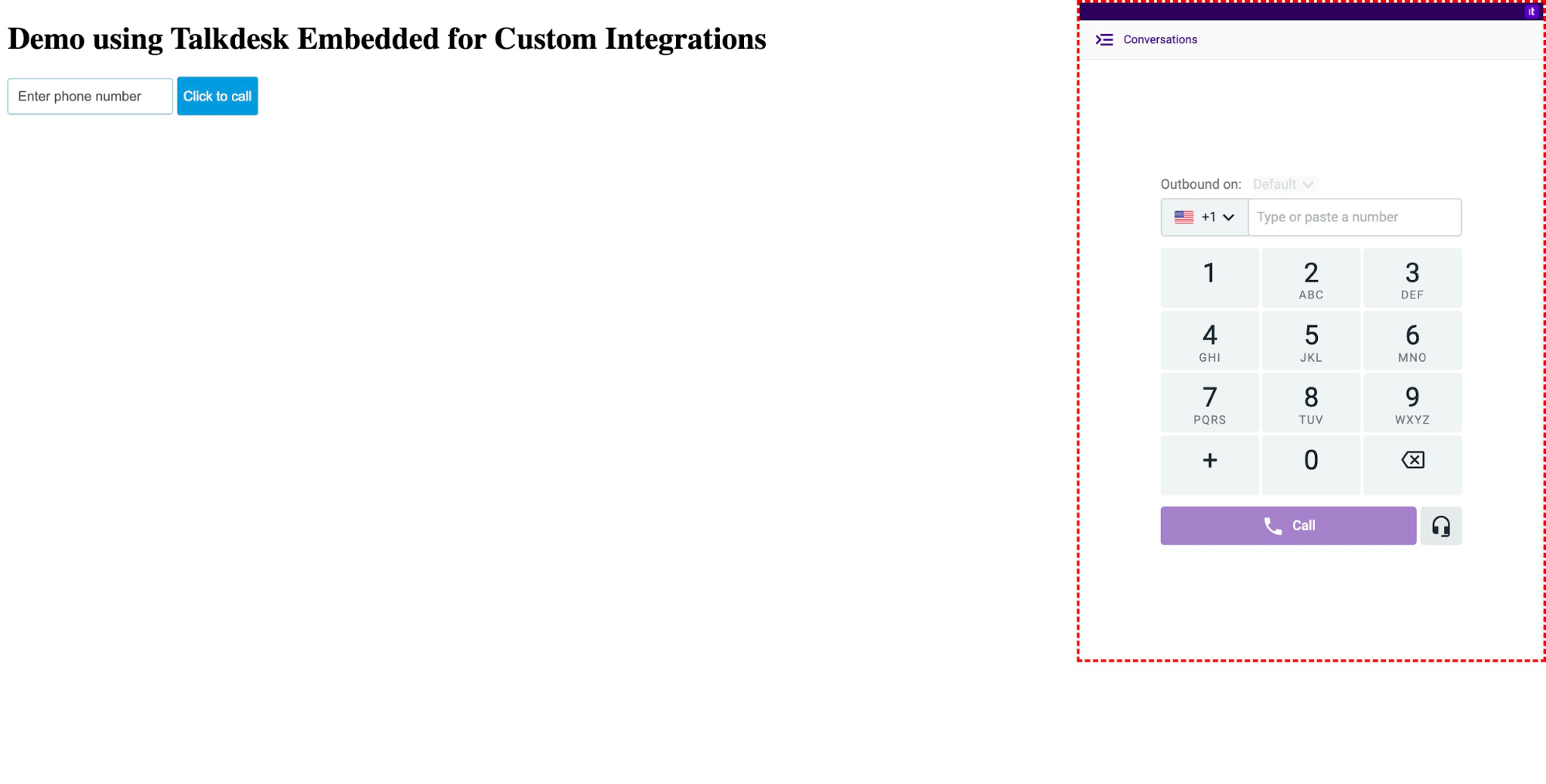
Talkdesk Embedded - External configuration
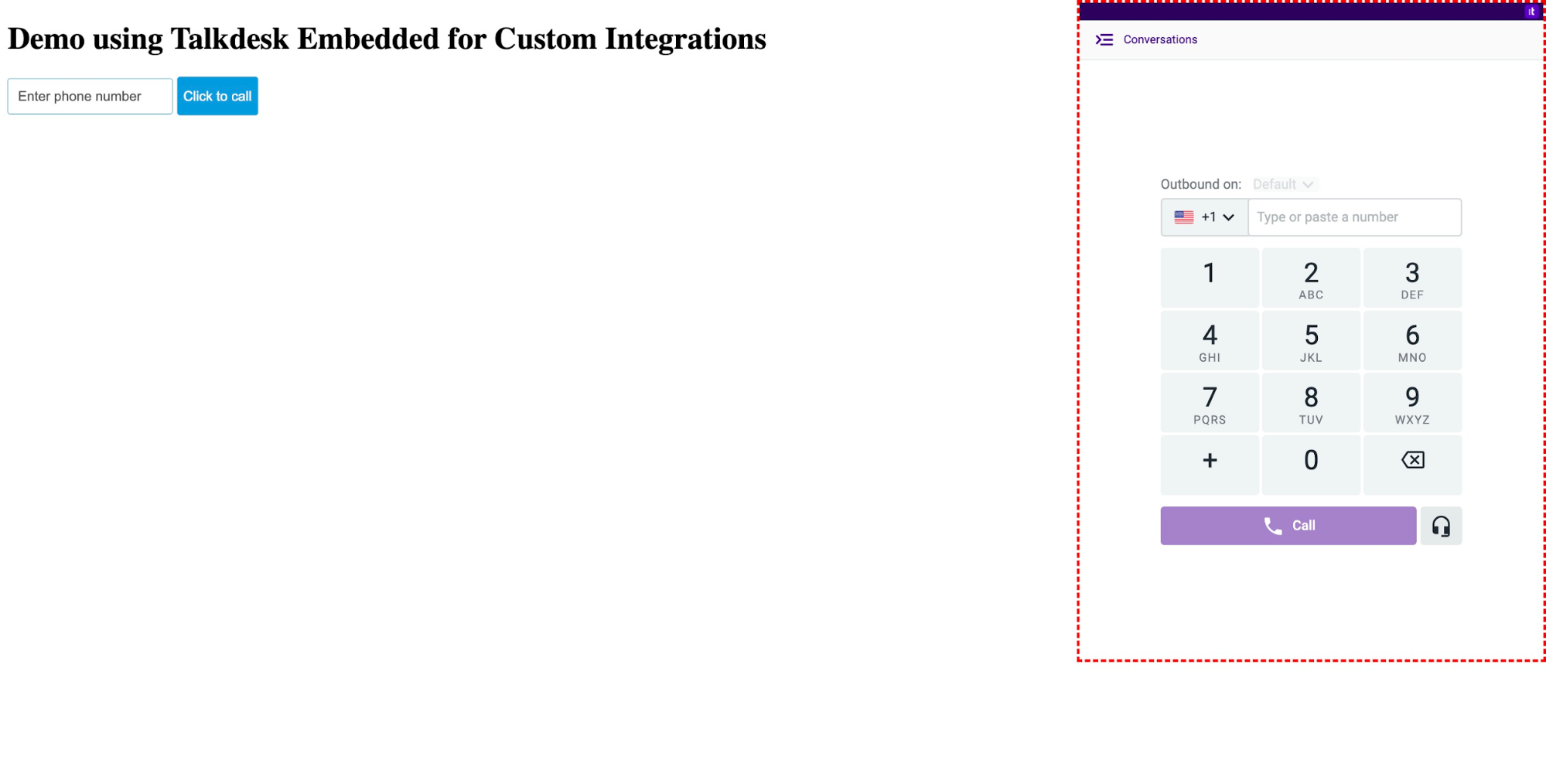
Talkdesk Embedded - Headless configuration with Conversations app and CTI Status bar visible.
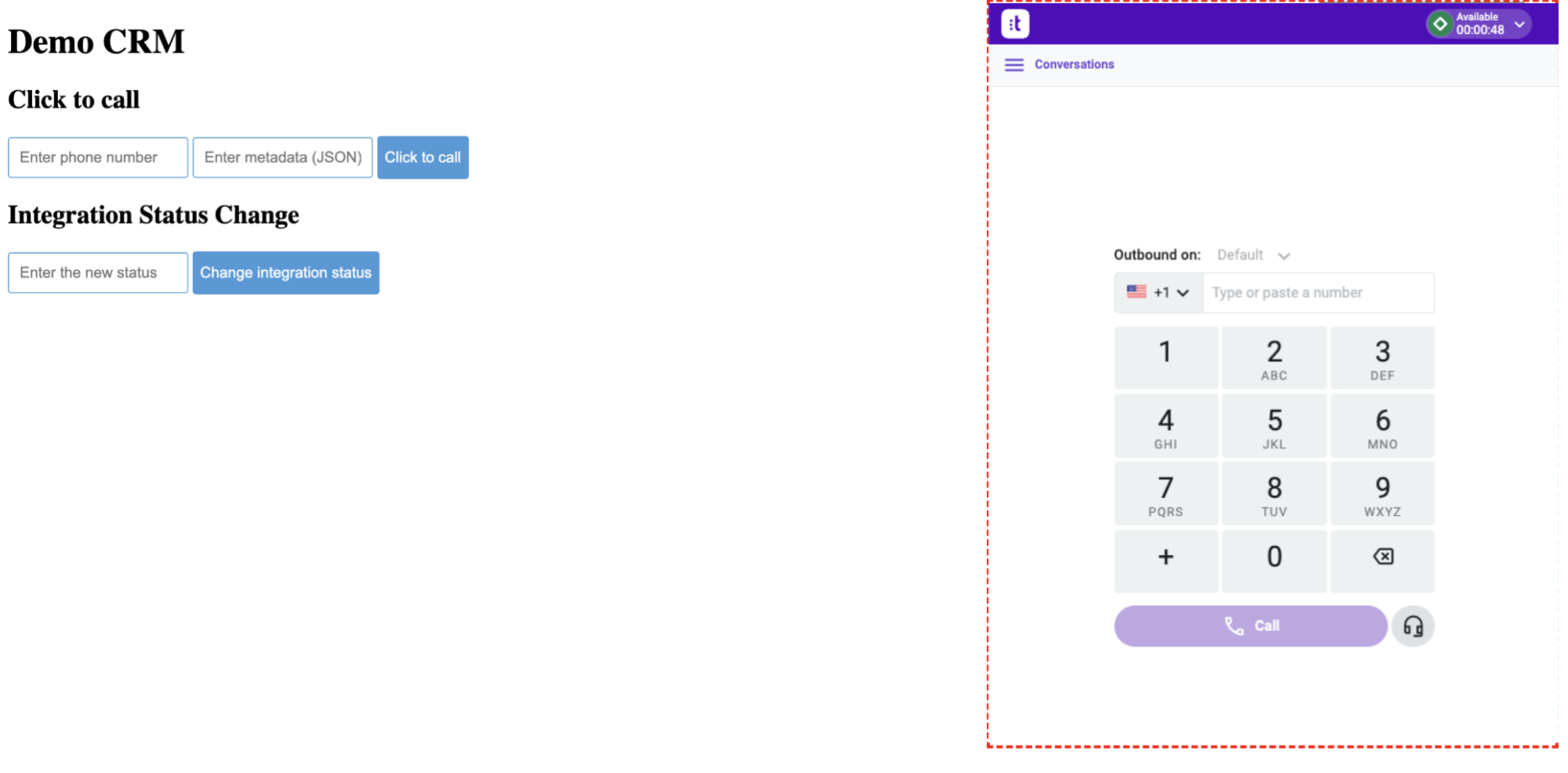
Talkdesk Embedded - Headless configuration with conversation app and title bar visible
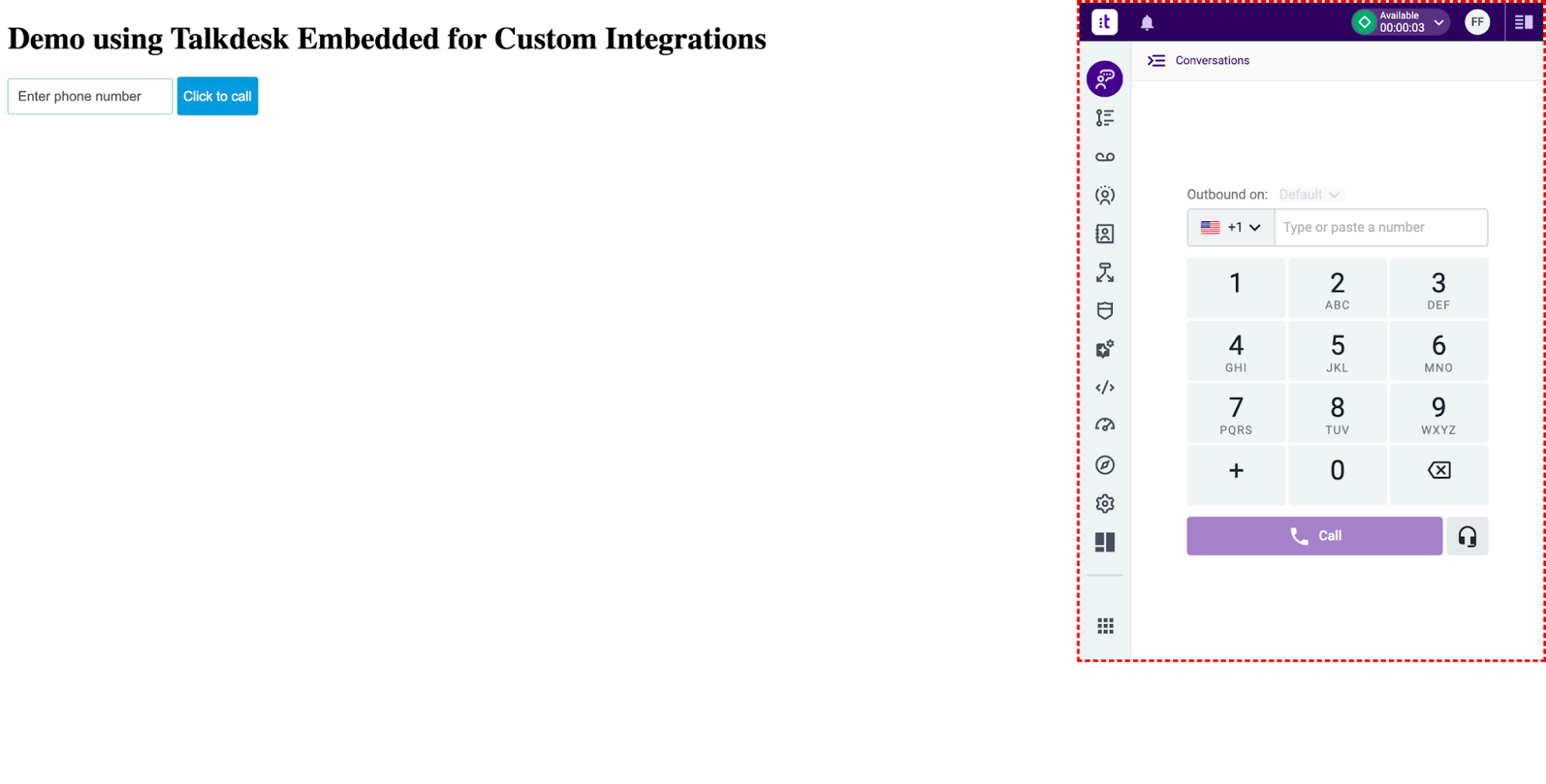
Talkdesk Embedded - Workspace configuration
Support and Troubleshooting
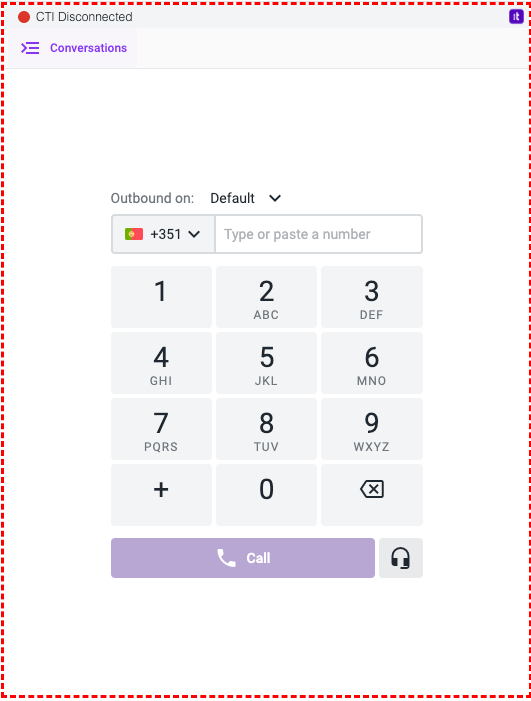
CTI Disconnected
When CTI connectivity is lost, a Reconnect button appears in the embedded component's status bar. Agents can click it to restore the connection without refreshing the page.
If the issue persists, please follow the steps below and ensure agents have Conversations open in at least one tab or have Conversations/Workspace Embedded, since a Conversations session is required.
Then, to have CTI Connected, agents must:
- Have the Client Integration configured in the Talkdesk User settings;
- Send the agent ID and email to Talkdesk in to Talkdesk the agent IDid and email on Agent Sync process.
Embedded Logs
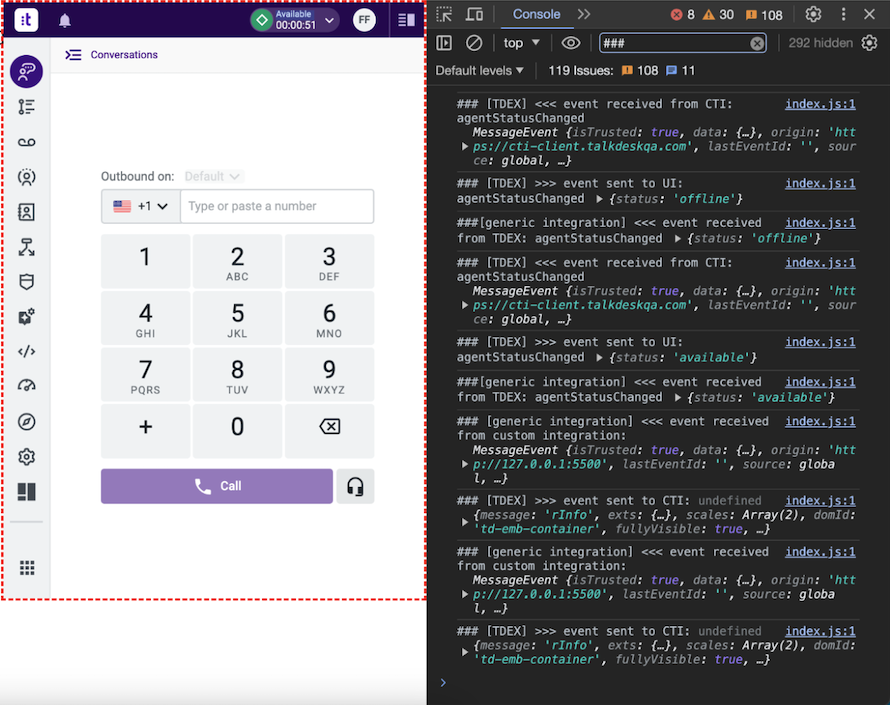
We can use the Browser Dev Tools Console to inspect the events being exchanged between the systems. All logs related to this solution start with the following prefix: ###.
NoteIf logs show any event not mentioned in the table above, it is because the events issued by CTI are propagated by Talkdesk Embedded to the integration.
Events not received on CRM / Talkdesk
When the CTI is disconnected, agents will not receive events from Talkdesk and Talkdesk will not receive events from the CRM.
Using Browser Dev Tools Console and searching for init event received we confirm the values sent on the init_td_embedded event:
- The parameter int must match the agent Client Integration configured in the Talkdesk User settings;
- The parameter aid must be the same as the
idsent on Agent Sync; - The parameter env must match the Talkdesk account region
prd-us | prd-ca | prd-eu | prd-au.

Updated 11 days ago